
Setup 5 of 14
Create a WordPress application password and connect
On a WordPress site, edits you choose with “Use this edit” can be applied directly where supported. The connection uses a WordPress application password: a separate password just for connections, not your normal login password.
- Required?
- Optional (WordPress only)
- Where you do it
- Your WordPress admin
Before you start
- What you need: WordPress served over https, and a user who can edit posts or pages (for example, an Editor or Administrator).
- It works without connecting: if you don’t connect, you copy the wording of each edit and apply it yourself.
- What we keep: the application password is stored encrypted and used only to apply and undo the edits you choose. We delete it when you disconnect or cancel.
If WordPress is in English
- In the WordPress admin, go to Users → Profile and note your Username.
- At the bottom of the profile, under Application Passwords, enter a name such as get1pct in New Application Password Name and click Add New Application Password.
- Copy the password that appears. WordPress shows it only once.
- In the Get1pct dashboard, open Connections, choose WordPress, enter the username and password, and click Connect.
The screenshots below show WordPress in Japanese. Each caption gives the Japanese label you see in the picture and, in brackets, the English label you will see if your WordPress is in English. The buttons are in the same places.
Steps with screenshots
Step 1Open your WordPress profile and note your username
Log in to your WordPress admin.
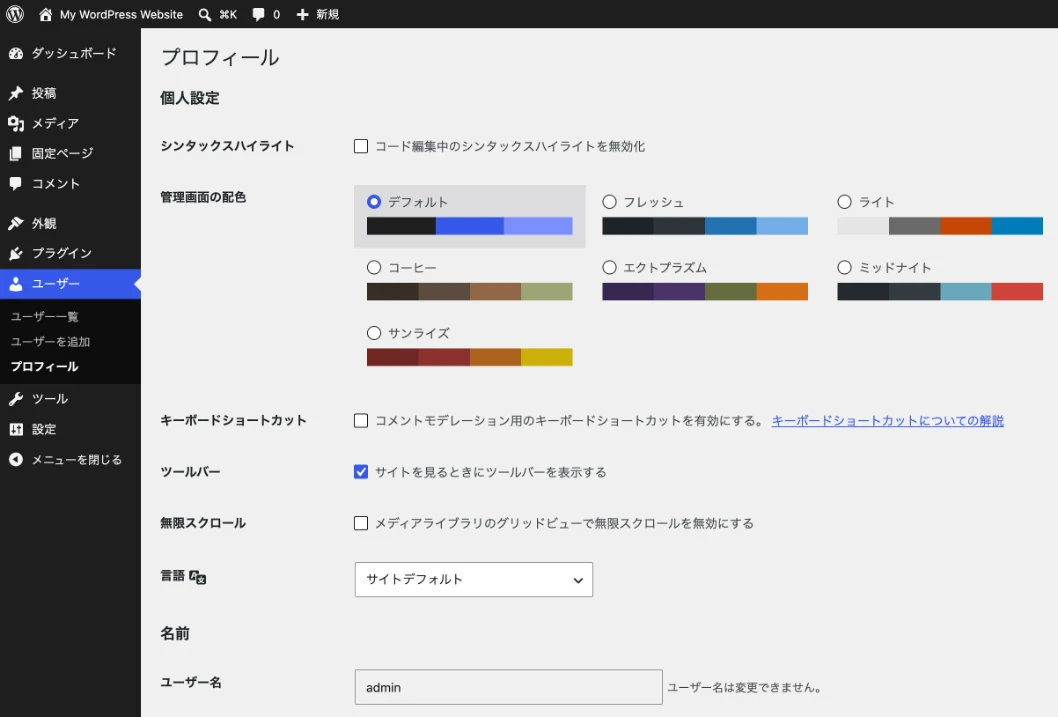
- Click “ユーザー” (Users) in the left menu.
- Click “プロフィール” (Profile).
- Note the “ユーザー名” (Username). You will enter it in the Get1pct dashboard.
Step 2Add an application password
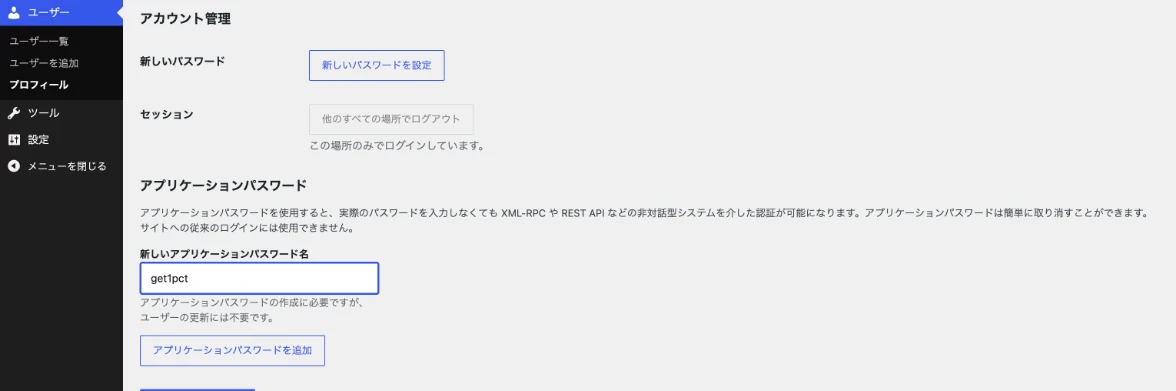
- Scroll to the bottom of the profile and enter a name you will recognise (for example, get1pct) in “新しいアプリケーションパスワード名” (New Application Password Name).
- Click “アプリケーションパスワードを追加” (Add New Application Password).
Step 3Copy the password that appears
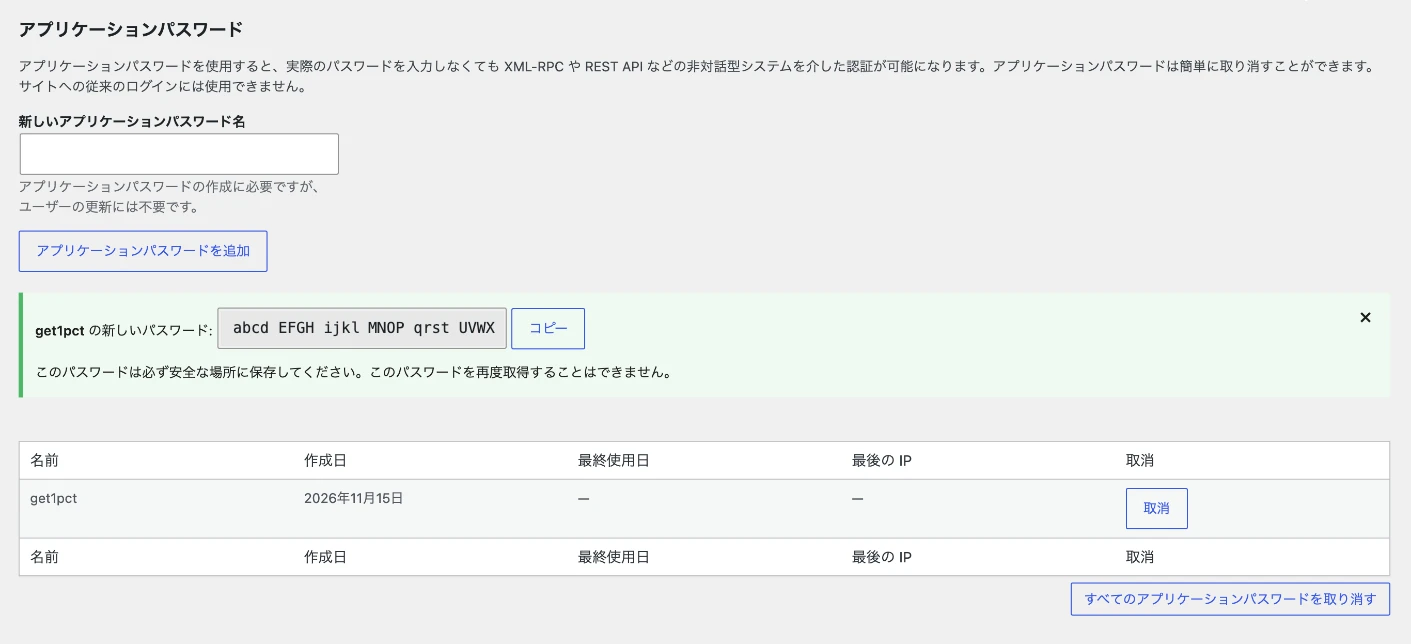
- Your new password appears in the green box.
- Click “コピー” (Copy). Once you leave this screen, WordPress will not show the same password again.
You can only see this password on this screen. If you left before copying it, revoke it in the list and create a new one.
Step 4Enter it in the dashboard and click Connect
Open Connections in your dashboard and choose “WordPress” under “How your site is updated”.
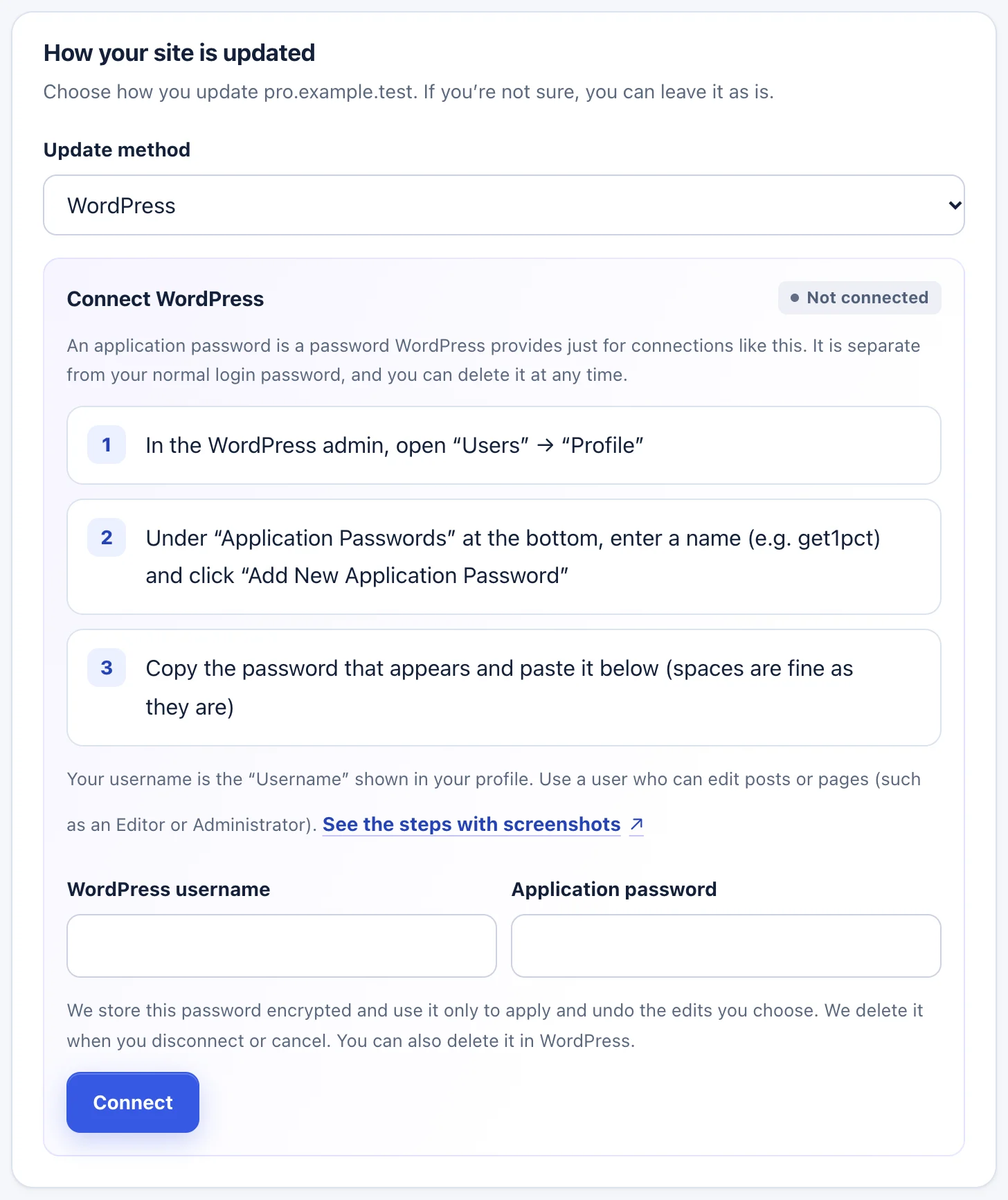
- Choose “WordPress” under “Update method”.
- Enter the username you noted in “WordPress username”.
- Paste the copied password into “Application password”.
- Click “Connect”.
You can leave the spaces in the password as they are.
After connecting
- Edits you choose with “Use this edit”, and edits you reword and save with “Use this wording”, are applied directly where supported.
- Applying to a published page changes the live content directly. You can undo an applied edit from the dashboard.
- Where we can’t change the content automatically, such as pages made with a page builder, you copy the wording and apply it yourself.
- Once WordPress is connected, you don’t need the ownership line to connect Google data.
Troubleshooting
- There is no Application Passwords section in my profile
- The site may not be served over https, or a security plugin or server setting may be blocking it. Ask whoever built your site.
- “We could not connect.”
- Check the username (the Username in your profile, not your email address), the pasted password, and that the user can edit posts or pages. A security plugin may also be blocking outside connections (the REST API).
- “Too many tries.”
- Wait a while and try again.
- An edit isn’t applied automatically
- Edits for places we don’t support, such as page builder content, need to be copied and applied by you. The edit screen shows how each one is applied.
To stop
Click “Disconnect” in Connections in your dashboard and we delete the password we keep. The password also stays in WordPress, so revoke it in the Application Passwords list in your profile.
- Click “取消” (Revoke) in the list to stop that password from working.
If the steps don’t match what you see, contact us with your site URL and the screen where you got stuck. Please don’t send passwords.