
Setup 4 of 14
Add a Viewer to Google Analytics 4 and find your property ID
When Get1pct can read your Google Analytics (GA4) traffic numbers, your edits also use where visitors come from and which pages they read. There are two things to do: add an address with the Viewer role, and enter your property ID in the dashboard.
- Required?
- Optional
- Where you do it
- Google Analytics
Before you start
- Permission you need: the Administrator role on the GA4 property. Only administrators can add users.
- Do first: you use the same address as in step 1 of the Search Console guide. If the ownership check isn’t done, add the ownership line first.
- Not using Analytics? You can skip this. Search Console alone is enough to start.
- What we read: sessions and key events for the last 28 days by source, channel, page and device. We don’t read search terms, locations or anything that identifies a person.
If Analytics is in English
- Open Google Analytics and pick the property for your site at the top left.
- Click Admin (the gear icon at the bottom left). In the Property column, click Property access management. Not Account access management.
- Click the blue + at the top right and choose Add users.
- Paste the address into Email addresses, untick Notify new users by email, keep the standard role as Viewer, and click Add at the top right.
- To find the property ID, go to Admin → Property details and copy the number under Property ID at the top right.
The screenshots below show Google Analytics in Japanese. Each caption gives the Japanese label you see in the picture and, in brackets, the English label you will see if your Google Analytics is in English. The buttons are in the same places.
Add the address
Step 1Open Admin, then Property access management
Open Google Analytics and pick the property for your site at the top left.
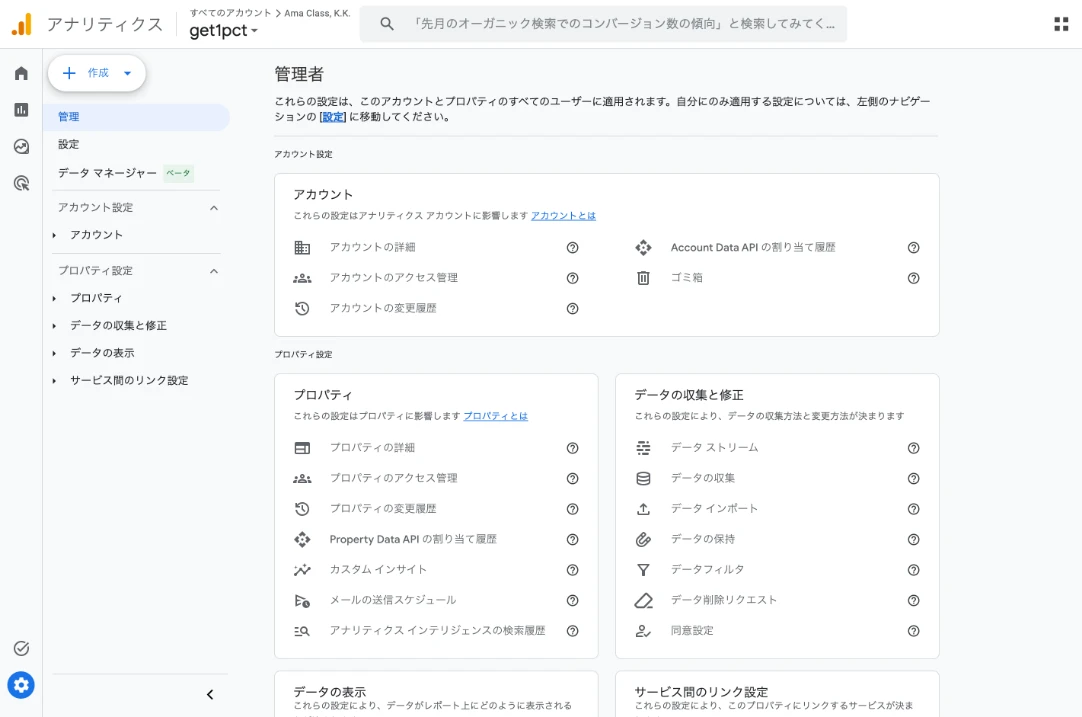
- Click the gear icon at the bottom left (“管理” / Admin).
- In the “プロパティ” (Property) column, click “プロパティのアクセス管理” (Property access management). It is not the “アカウントのアクセス管理” (Account access management) link above it.
Step 2Click + at the top right and choose Add users
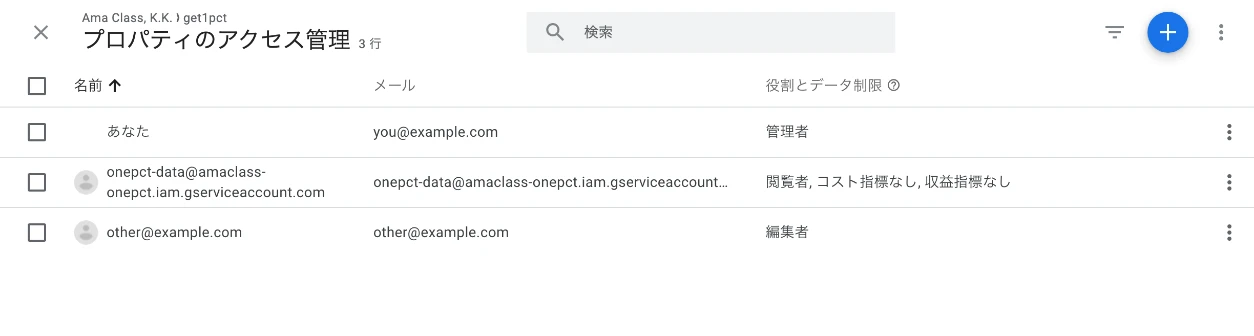
- Click the blue “+” button at the top right.
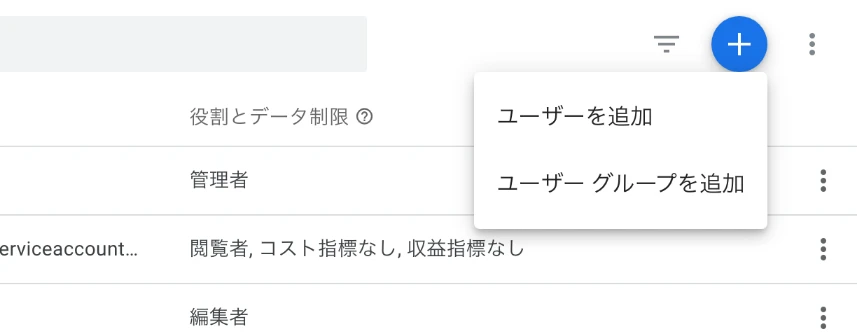
- Choose “ユーザーを追加” (Add users).
Step 3Paste the address and add it as a Viewer
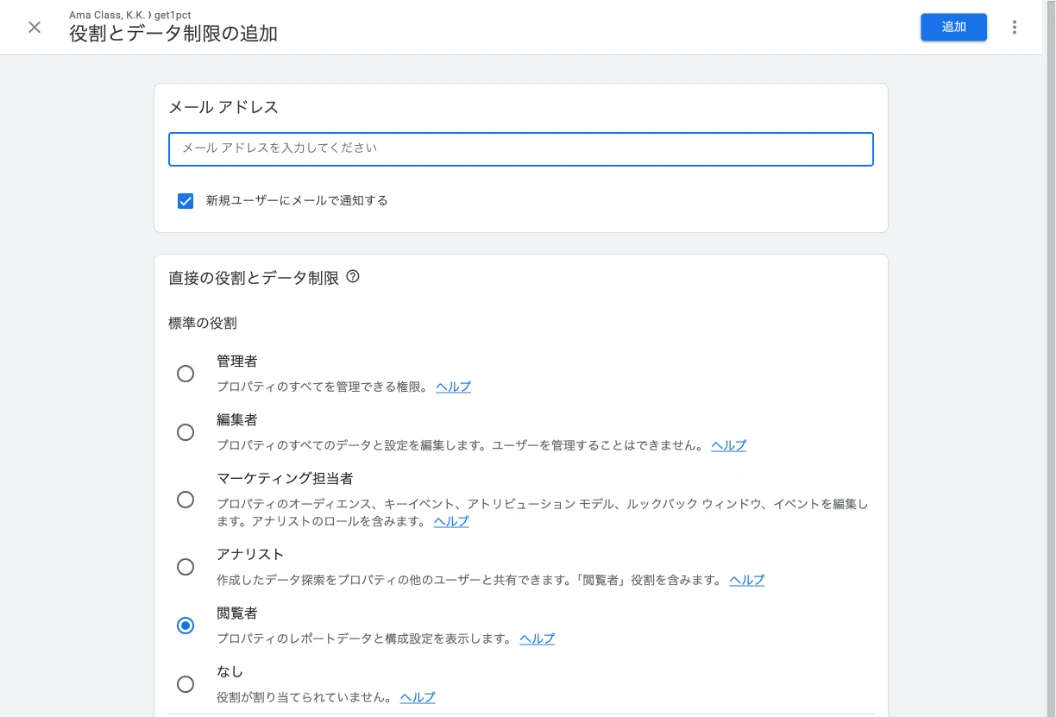
- Paste the copied address into “メール アドレス” (Email addresses).
- Untick “新規ユーザーにメールで通知する” (Notify new users by email). This address does not receive email.
- Check that the standard role is “閲覧者” (Viewer).
- Click “追加” (Add) at the top right.
Viewer can only look at numbers. It can’t change settings or manage users. You can leave the data restrictions below it ticked or unticked.
Enter the property ID
Step 4Copy the property ID
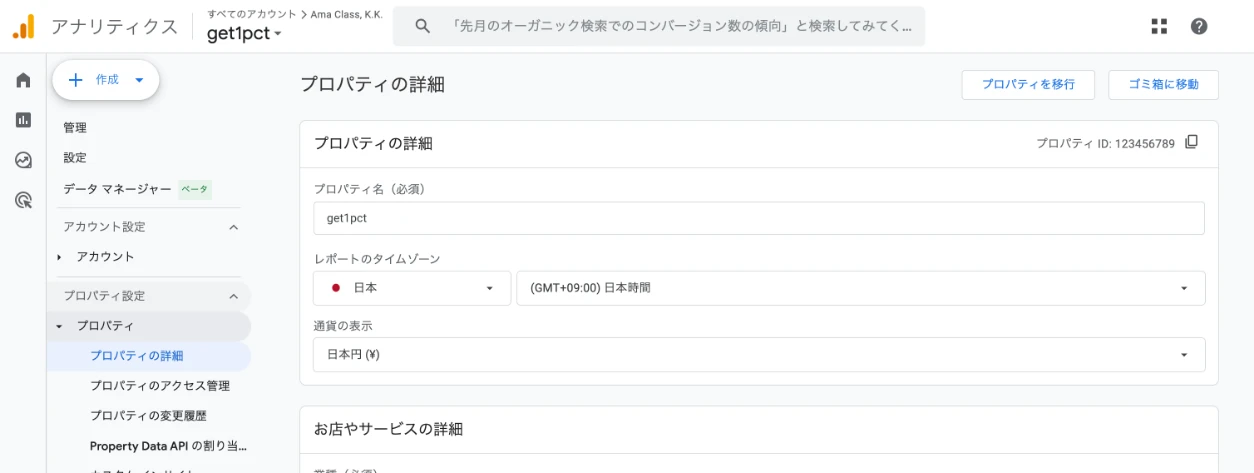
- In the Admin menu, open “プロパティ” (Property) → “プロパティの詳細” (Property details).
- Copy the number under “プロパティ ID” (Property ID) at the top right. The square icon next to it copies the number.
The property ID is numbers only. It is not the measurement ID that starts with “G-”. A measurement ID can’t be confirmed.
Step 5Paste it into “GA4 property ID” in the dashboard
Go back to Connections in your dashboard and paste the number into “GA4 property ID (numbers only)”.
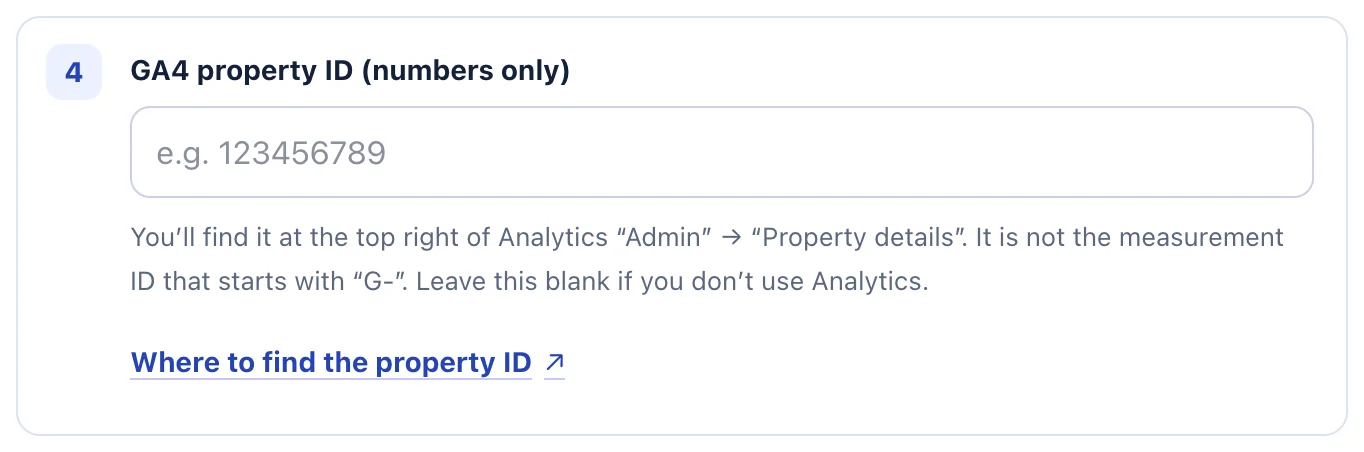
- Paste the copied number into “GA4 property ID (numbers only)”.
Check that it worked
Click “Check that it was added”. When the label next to Analytics changes to “Confirmed”, you’re done.
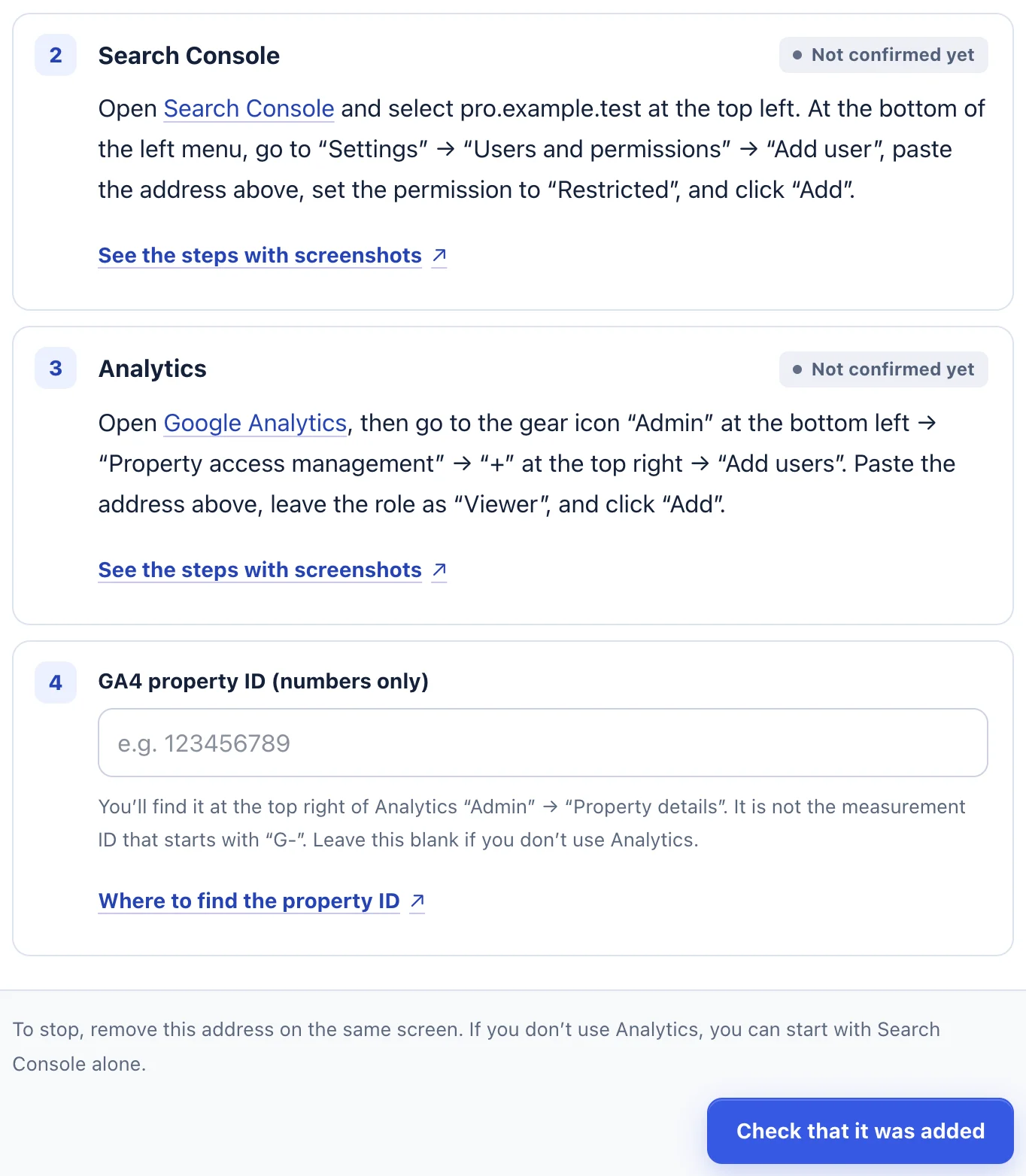
- Click “Check that it was added” at the bottom.
- You are done when the label next to each step changes from “Not confirmed yet” to “Confirmed”.
Troubleshooting
- “Please enter the property ID using numbers only.”
- You entered a measurement ID that starts with “G-”. Use the numeric Property ID at the top right of Admin → Property details.
- It stays at “Not confirmed yet”
- Check that the property measures this site; a property for another site can’t be confirmed. Also check that you added the address in Property access management for this property, not in Account access management.
- There is no + at the top right
- You’re signed in with an account that isn’t an administrator. Ask someone listed as Administrator in Property access management to add the address.
- “We could not find the ownership tag on your home page.”
- The ownership check isn’t done yet. Add the ownership line first.
To stop
In Admin → Property access management, click the three dots (⋮) next to the address you added and remove its access. We can’t read the numbers from that moment.
If the steps don’t match what you see, contact us with your site URL and the screen where you got stuck. Please don’t send passwords.