
Setup 1 of 14
How to apply your first edit to your website
An edit only helps once it is on your site. The edit you picked when you signed up is not applied automatically. This page walks you from applying that first edit to deciding on each morning’s edits with “Use this edit”, “Edit the wording” or “Skip”.
- Required?
- Required
- Where you do it
- Your site editor and the Get1pct dashboard
Apply your first edit
Once payment is complete, the home page of your dashboard shows “Setup progress” and “The edit you picked at sign-up”.
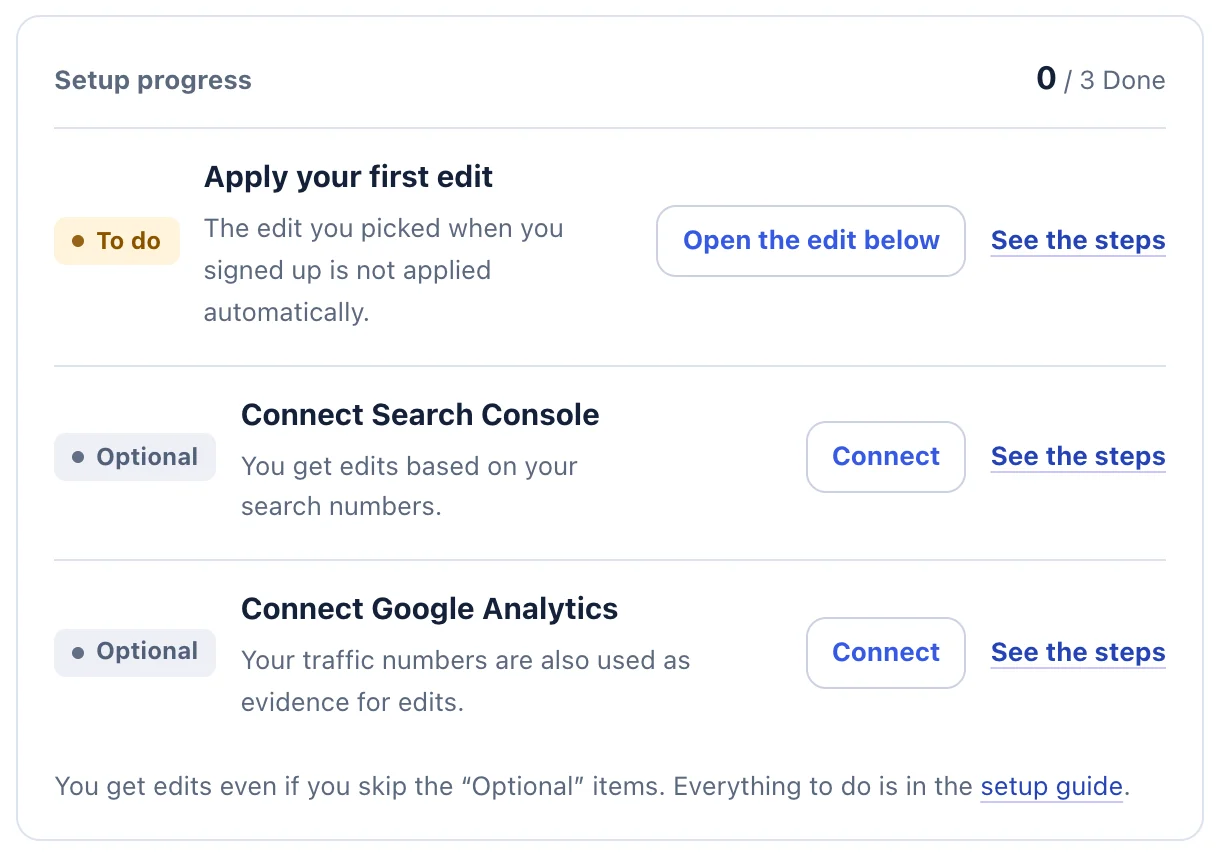
- “Setup progress” lists the tasks you have not finished yet.
- “See the steps” opens the guide for that task.
Step 1Copy the new wording
In “The edit you picked at sign-up”, click “Copy the new wording”.
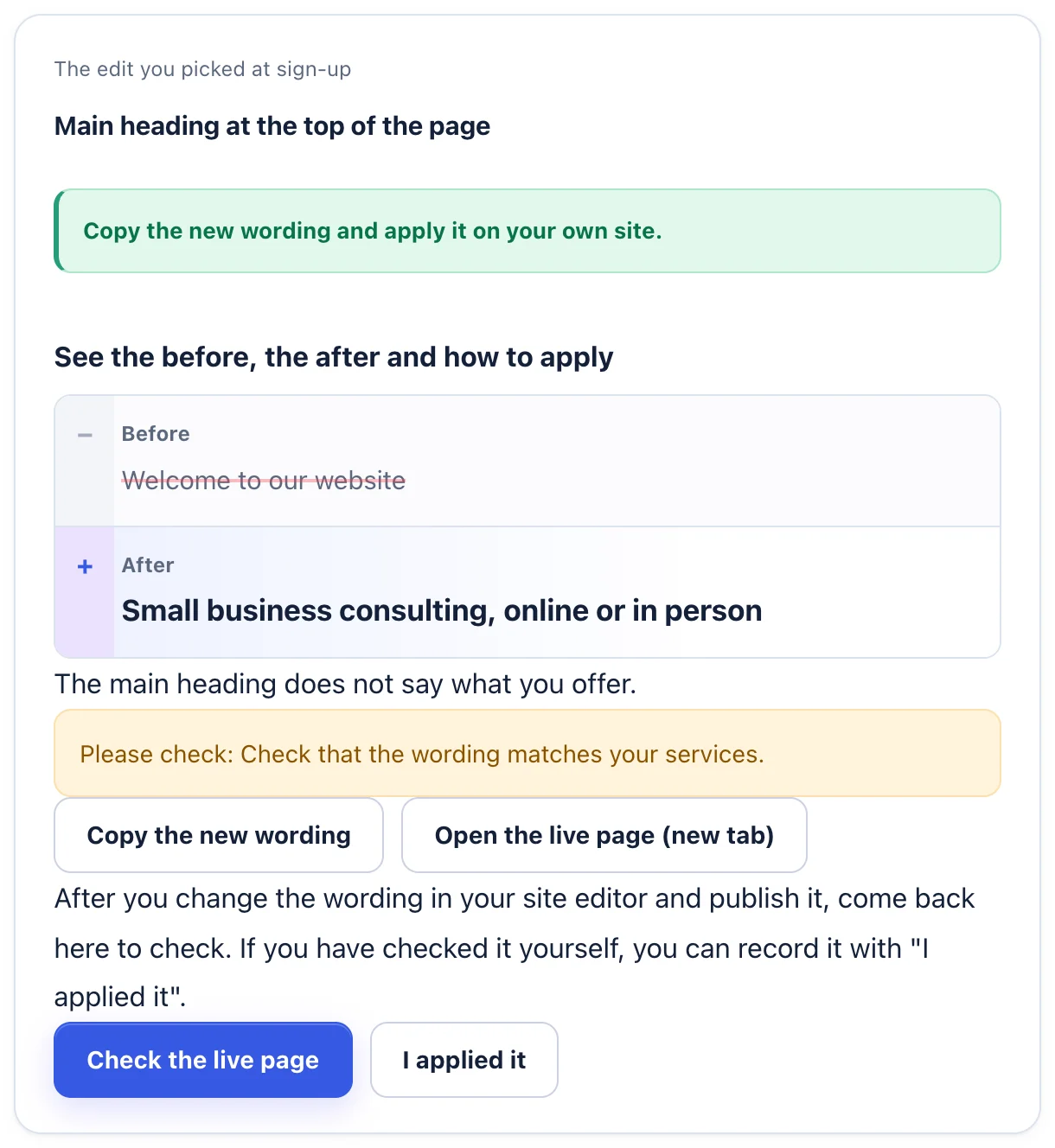
- Click “Copy the new wording”.
- After you have changed your site and published it, click “Check the live page”.
- If we cannot read the live page, check it yourself and click “I applied it”.
Step 2Change it in your own site editor and publish
In the place you normally update your site (WordPress, a website builder, or a request to your agency), find the old wording, replace it with the copied wording and publish.
- Use the title of the edit (for example, “Main heading at the top of the page”) and the old wording to find the spot. “Open the live page (new tab)” opens the page.
- A “search result title” or “search result description” is not in the page text. It is in the page’s SEO settings (title and meta description).
Step 3Check that it is live
Go back to the dashboard and click “Check the live page”. If the new wording is on the live page, it is recorded as checked. If we can’t read the page, check it yourself and click “I applied it”.
If you changed a search result title or description, it can take some days before Google shows it in search results.
Decide on each morning’s edits
From as early as the next morning, we email you on mornings when there is a good edit (no email on days without one). In “Today’s edits”, read the before, after and reason for each edit, then choose one of these:
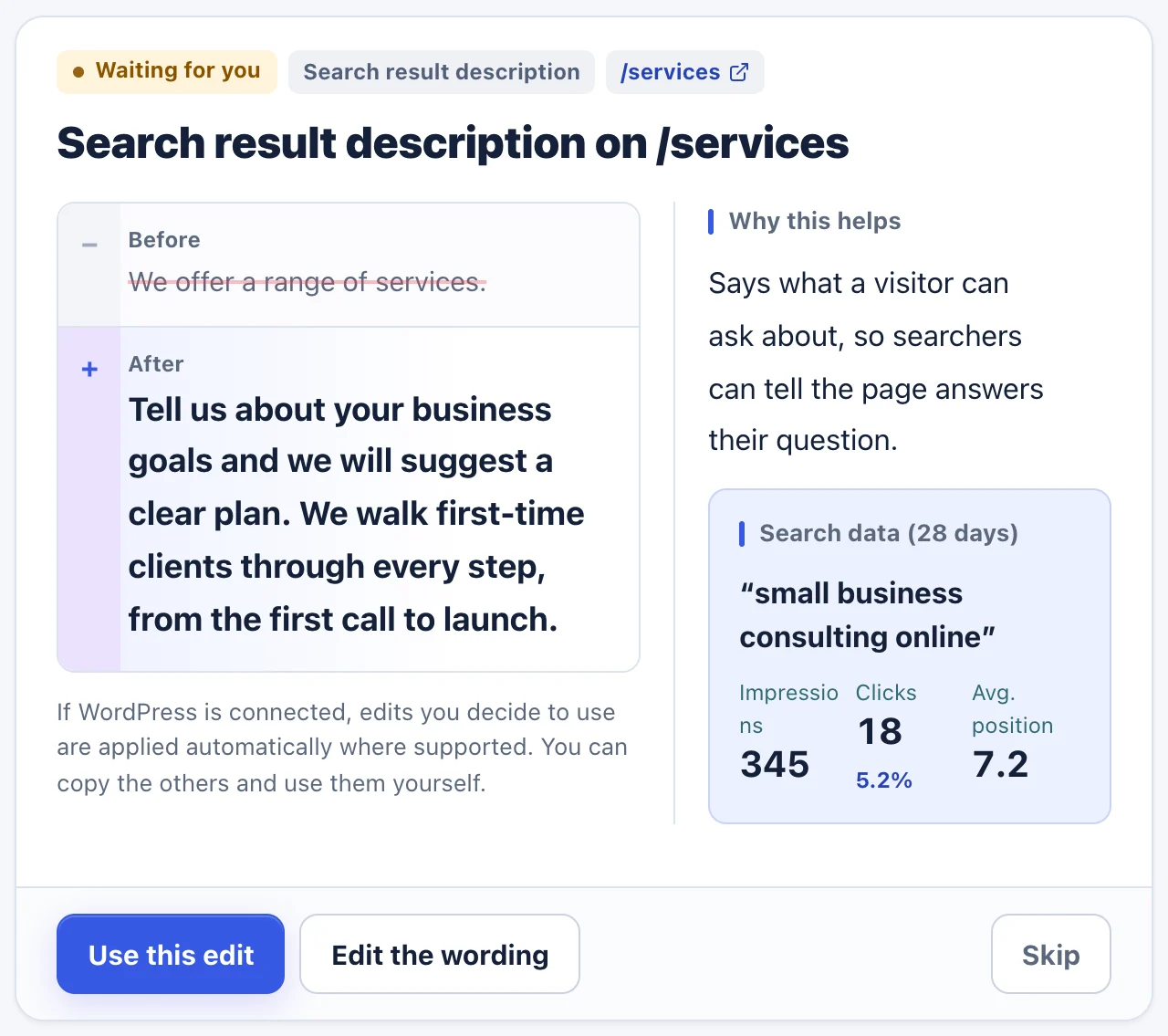
- To use it as it is, click “Use this edit”.
- To change the phrasing first, click “Edit the wording”.
- To leave it this time, click “Skip”.
- Use this edit: use it as it is.
- Edit the wording: change the phrasing, then click “Use this wording”.
- Skip: don’t use it this time. If you add a reason, we use it when writing the next edits.
Edits that touch numbers, facts or legal points carry a note. Always check that the content is correct before you publish.
Record what you applied
- With WordPress connected: edits you decide to use are applied directly where supported. Connect WordPress
- Otherwise: copy the new wording, apply it yourself, and click “I applied it”.
- Edits you decided to use but haven’t applied yet stay as “To do” in Edit history.
Troubleshooting
- I can’t find the old wording on my site
- Open the page with “Open the live page (new tab)” and use your browser’s find (Ctrl+F, or ⌘+F on a Mac) to search for part of the old wording. If you still can’t find it, it is fine to skip the edit.
- “We could not find the new wording on your live page.”
- The change may not be published yet, or a cache may be showing the old page. Wait a little and try again, or check it yourself and click “I applied it”.
- Copying doesn’t work
- Select the text (long-press on a phone, or drag and right-click on a computer) and copy it.
- I don’t get the emails
- We don’t send email on days without a good edit. Check your spam folder too. You can also change where notifications go.
If the steps don’t match what you see, contact us with your site URL and the screen where you got stuck. Please don’t send passwords.