
Setup 12 of 14
Send morning notifications to Slack, Discord or Google Chat
Notifications about today’s edits go to your login email address at first. If your team wants to see them together, you can send them to Slack, Discord, Google Chat and more. The services you can choose are listed on the screen.
- Required?
- Optional
- Where you do it
- Dashboard → Site settings
Steps
Step 1Open Morning notifications in Site settings
Open Site settings in your dashboard and choose where to send notifications under “Morning notifications”.
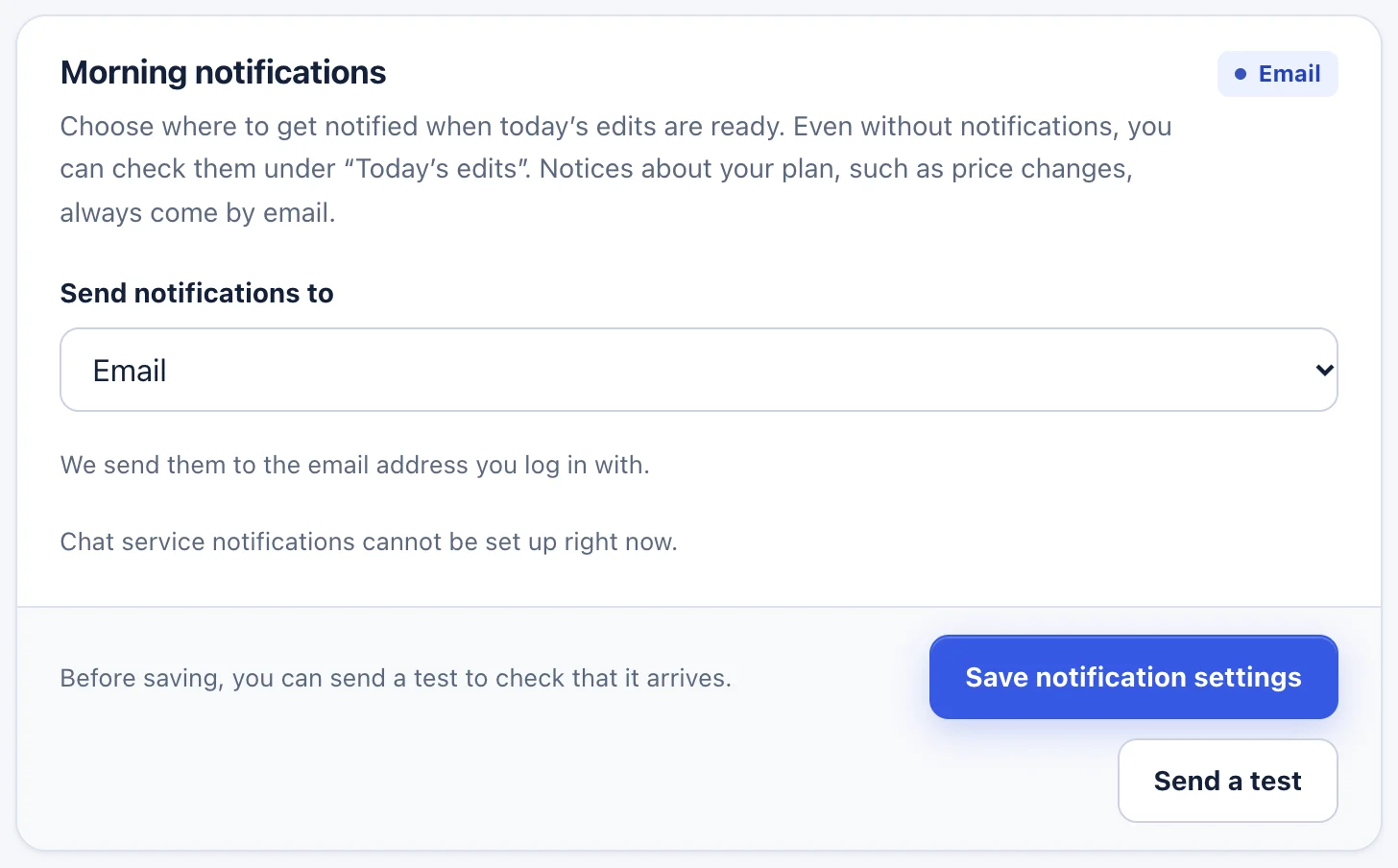
- Choose where to send them under “Send notifications to”.
- Click “Save notification settings”.
Step 2Create a webhook URL in the service
When you choose Slack or another service, a “Webhook URL” field and a “How to create a webhook URL” link appear. Follow the link to that service’s instructions and create a URL for the channel (or space) you want to post to.
A webhook URL works like a key for posting to that place. Don’t show it to others or paste it anywhere public.
Step 3Paste the URL and send a test
Paste the URL into “Webhook URL” and click “Send a test”. Check that the message arrived, then save.
Troubleshooting
- “We couldn’t send the test notification.”
- Check that you copied the whole webhook URL and that webhooks are turned on in that service.
- “You can send one test per minute.”
- Wait a moment and try again.
- I want to stop notifications
- Choose “No notifications” and save. Edits still arrive in “Today’s edits” in your dashboard.
If the steps don’t match what you see, contact us with your site URL and the screen where you got stuck. Please don’t send passwords.