
Setup 2 of 14
Add the ownership meta tag to your home page
So that nobody else can read your site’s numbers, we confirm that you own the site before connecting Google data. You add one line to your home page. If you have connected WordPress, you don’t need this.
- Required?
- When connecting Google
- Where you do it
- Your home page
Before you start
- When you can skip it: if you have connected WordPress, that counts as the ownership check. Skip this page.
- What you need: a way to edit the HTML of your home page. If you can’t, send the “Where to add the line” section below to whoever built your site.
- Where it goes: only the home page,
https://your-site/. The line on any other page can’t be confirmed.
Steps
Step 1Copy the line in your dashboard
Open Connections in your dashboard. Under “Connect Google data”, find “Ownership check” and click “Copy this line”.
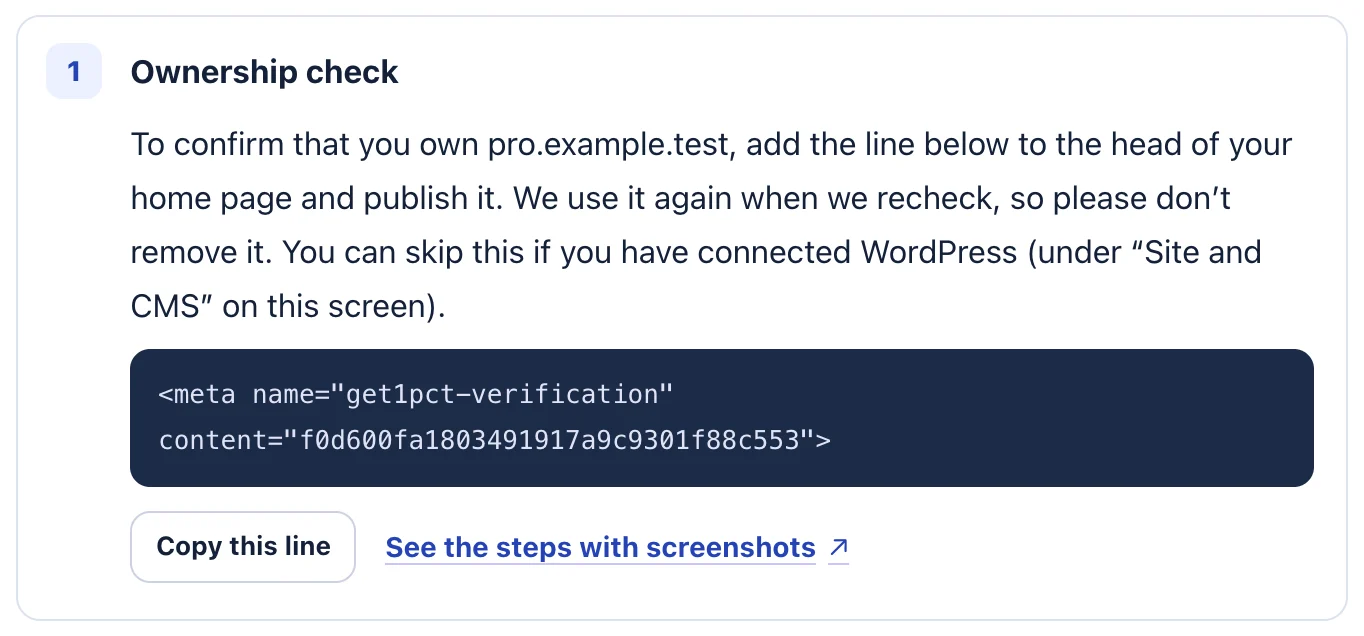
- The line to add is shown under “Ownership check”.
- Click “Copy this line”.
The line is different for each account and site; one from another site won’t work. It isn’t a secret, so you can send it to your web agency.
Step 2Add it to the head of your home page and publish
Paste the line between <head> and </head> on your home page, then publish.
<head>
  <title>Your home page title</title>
  <meta name="get1pct-verification" content="(the text shown in your dashboard)">
</head>
Inside <body> (the page content or footer) it can’t be confirmed. Always put it inside <head>.
Step 3Check
Go back to Connections in your dashboard and click “Check that it was added”. Then continue with Search Console and Google Analytics.
Where to add the line
Where the line goes depends on how your site is built.
- Website builders: look in the site settings for something like “Custom code”, “Add code to head” or “Header code injection”. Paste the line there and publish.
- WordPress: instead of adding this line, you can connect WordPress.
- If an agency or developer manages your site: send them the copied line and ask them to “add this line inside the head of the home page and publish it”.
Troubleshooting
- “We could not find the ownership tag on your home page.”
- Check that the line is inside the head and that the change is published, not saved as a draft. Open your home page in a browser, view the page source and search for “get1pct-verification”.
- My home page redirects to another address
- If the home page redirects to another domain, it can’t be confirmed. Add the line to the home page of the site you signed up with, not the redirect target.
- It worked before but can’t be confirmed now
- Check that a site update or theme change didn’t remove the line. We use it every time we recheck, so leave it in place.
To stop
After you cancel, you can remove this line from your home page.
If the steps don’t match what you see, contact us with your site URL and the screen where you got stuck. Please don’t send passwords.