
Setup 10 of 14
Connect your own site with the Get1pct API
Use the Get1pct API if you built your site yourself, or if it runs on a CMS that Get1pct can’t connect to directly. Your own server fetches the edits the owner decided to use, saves them as drafts on your site and reports the result back. The Get1pct API never writes to or publishes your site.
- Required?
- Optional (Growth or Pro)
- Where you do it
- Dashboard → API, and your own server
Before you start
- You need a Growth or Pro plan, and your own server to call the API from. Never call it from a browser.
- Each plan has one key, which starts with
opct_. On Pro, the same key also works for the sites you added. - To fetch edits and report results, the ownership line (
<meta name="get1pct-verification" …>) must be in the head of your home page. Reading the list of edits works without it. On Pro, each site you added needs its own line on its own home page. The line is different for each site, so switch to that site in the dashboard and copy its line there. - If WordPress or a CMS is connected to the same site, Get1pct applies edits through that connection, and applying through the API is refused (
application_conflict). Use one or the other. - The API is also described in the OpenAPI JSON.
How it behaves
- The API hands out only edits that the owner personally chose with “Use this edit”, or reworded and then used. A key alone can’t approve edits.
- The fields are
title,description,h1andbody. The page must be an https URL on the site, with no port, ? or #. - The API never hands out an edit whose new text contains
< > [ ]or NUL. Fortitle,descriptionandh1, it also holds back new text with line breaks or other control characters, or more than 2,000 characters. - Each edit belongs to exactly one application ID (job). Fetching the same edit again returns the same ID. Keep the ID in your own records and use it to avoid applying an edit twice.
- A reported result can’t be overwritten. For example, you can’t change
draft_savedtofailed, but sending the identical report again is accepted.publishedis accepted only when it points to thedraft_savedrevision you reported earlier. - Each time you fetch an edit or report a result, Get1pct reads the ownership line on your home page.
- Get1pct never connects to a URL that the caller supplies, and never sends your key anywhere. All writing and publishing on your site happens on your own server.
On your own server, change a value only when it is exactly the same as the edit’s before text, and only for pages and fields on your allow list. In any other case, report failed with conflict.
Steps
Step 1Add the ownership line to your home page
Open Connections in your dashboard, copy the line shown under the ownership check, and publish it in the head of your home page. The line is not a secret. The screenshot shows the English dashboard.
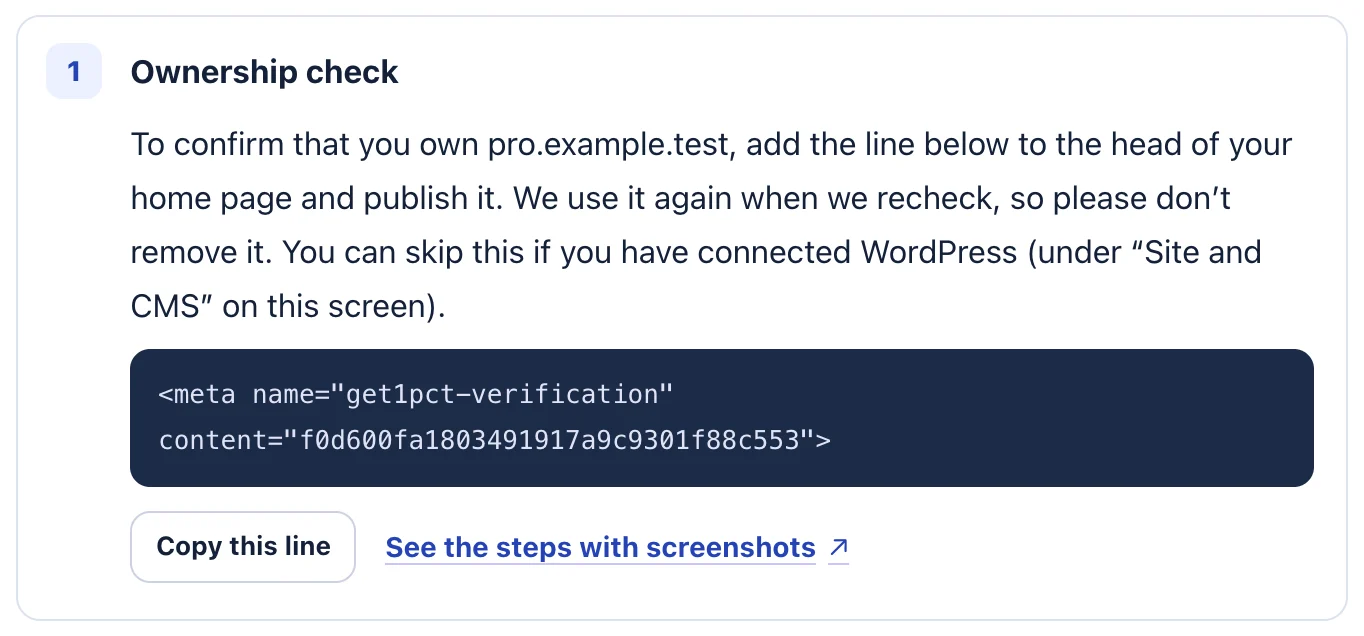
- The line to add is shown under “Ownership check”.
- Click “Copy this line”.
Step 2Create an API key
Open API in your dashboard. The dashboard in the screenshot is in Japanese, so each step below it gives the English label in brackets.
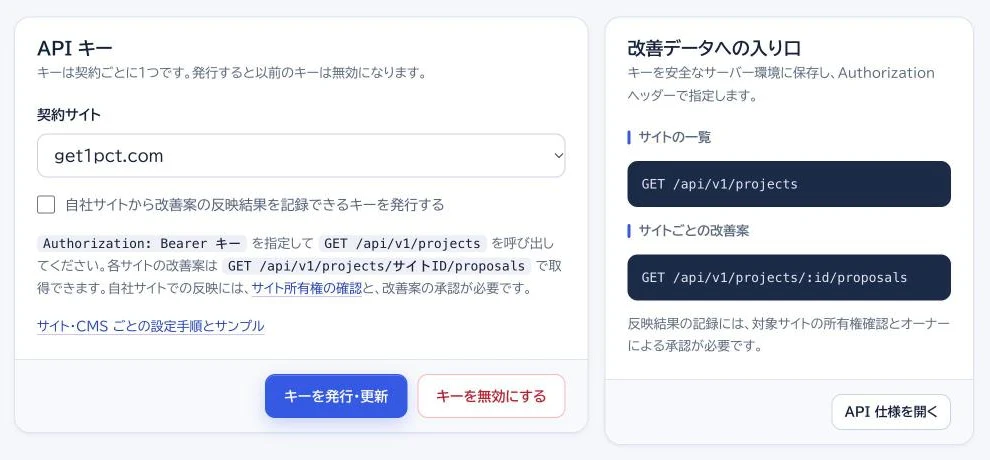
- Choose your site in “契約サイト” (Site).
- If you will fetch edits and report results (POST and PUT), check “自社サイトから改善案の反映結果を記録できるキーを発行する” (Create a key that lets your own site record the results of applying edits). Leave it unchecked for read-only use.
- Click “キーを発行・更新” (Create or renew key). The key is shown only once, and the previous key stops working immediately.
- Click “キーを無効にする” (Turn off key) when you no longer use it.
- “API 仕様を開く” (Open the API spec) shows the OpenAPI specification.
Put the key straight into your server’s secret store, such as the system that manages your environment variables. Don’t put it in email, chat, code that runs in a browser, or Git.
Step 3Call it from your server
Send Authorization: Bearer opct_… with every request. Every response is JSON with Cache-Control: no-store.
curl -s https://get1pct.com/api/v1/projects \
  -H "Authorization: Bearer $GET1PCT_API_KEY"

{"projects":[{"id":"SITE_ID","host":"example.com","url":"https://example.com/"}]}
Endpoints
All endpoints are under https://get1pct.com. Each key can make 60 requests a minute. Beyond that you get 429 rate_limited. The count resets 60 seconds after the first request, and the Retry-After header tells you how many seconds are left.
GET /api/v1/projects: the sites the key can use (id,host,url). On Pro, this includes the sites you added.GET /api/v1/projects/{id}/proposals: the latest 50 edits for the site, newest first, withid,date,page,field,before,after,reason,statusandapplicationStatus.POST /api/v1/projects/{id}/proposals/{proposalId}/application: get an approved edit and its application ID. The body is just{"operation":"save_draft"}.PUT /api/v1/projects/{id}/proposals/{proposalId}/application: report the result.
POST and PUT bodies use Content-Type: application/json and can be up to 2,048 bytes. POST and PUT work only with a key created with “Create a key that lets your own site record the results of applying edits” checked.
status is one of shown (not decided yet), approved (Use this edit), edited (reworded and used) and rejected (skipped). For an edit applied through the API, applicationStatus goes from claimed to draft_saved to published, or ends at failed. It is none while nothing has been applied.
Applying an edit
Step 1Find approved edits
Pick edits whose status is approved or edited and whose applicationStatus is none, or copy for edits that were offered for copying.
curl -s https://get1pct.com/api/v1/projects/SITE_ID/proposals \
  -H "Authorization: Bearer $GET1PCT_API_KEY"

{"proposals":[{"id":"PROPOSAL_ID","date":"2026-11-17",
  "page":"https://example.com/about","field":"title",
  "before":"About us","after":"About us | Family bakery since 1994",
  "reason":"…","status":"approved","applicationStatus":"none"}]}
Step 2Get the application ID and the change
curl -s -X POST https://get1pct.com/api/v1/projects/SITE_ID/proposals/PROPOSAL_ID/application \
  -H "Authorization: Bearer $GET1PCT_API_KEY" \
  -H "Content-Type: application/json" \
  -d '{"operation":"save_draft"}'

{"application":{"id":"3f0c… (a UUID)","claimedAt":1794900000000,"result":null,"published":null},
 "change":{"operation":"save_draft","page":"https://example.com/about","field":"title",
  "before":"About us","after":"About us | Family bakery since 1994"}}
If application.result is already filled in, you handled this edit before. Don’t apply it again.
Step 3Save a draft on your site
Use change.page and change.field to find the record and field on your site. If its current value is exactly change.before, save change.after as a draft. Record the application ID (application.id) on your side.
Step 4Report the result
curl -s -X PUT https://get1pct.com/api/v1/projects/SITE_ID/proposals/PROPOSAL_ID/application \
  -H "Authorization: Bearer $GET1PCT_API_KEY" \
  -H "Content-Type: application/json" \
  -d '{"id":"3f0c… (the application.id from POST)","status":"draft_saved","revision":"rev-1024"}'

# When you did not save it
-d '{"id":"…","status":"failed","code":"conflict"}'
# After someone published the draft
-d '{"id":"…","status":"published","draftRevision":"rev-1024","revision":"rev-1025"}'draft_saved: you saved the draft.revisionis your own revision ID: letters, digits and_ . : -, up to 128 characters, and never a secret.failed: you didn’t save it.codeisunsupported(a field you don’t handle),conflict(the current value differs frombefore) orrejected(refused by your own checks).published: someone published the draft.draftRevisionis the revision you reported before, andrevisionis the published one. This report only records the publishing. It doesn’t publish anything.
Error codes
When a request fails, the API returns the HTTP status and {"error":{"code":"…"}}. A 403 forbidden also has a reason that tells you which case you hit, for example {"error":{"code":"forbidden","reason":"daily_paused"}}.
invalid_request(HTTP 400): The request isn’t in the expected shape (not JSON, missing or extra fields, over 2,048 bytes, and so on).unauthorized(HTTP 401): No key, a malformed key, or a key that was turned off (including an old key replaced by a new one).forbidden(HTTP 403): One of three cases, named in reason: the plan isn’t Growth or Pro or has ended (plan_inactive), you called POST or PUT with a key that can’t record results (applications_disabled), or you called POST while morning edits are paused for the site (daily_paused).ownership_required(HTTP 403): We didn’t find the ownership line in the head of your home page.not_found(HTTP 404): The site ID or edit ID doesn’t exist or belongs to someone else.not_approved(HTTP 409): The owner hasn’t chosen “Use this edit” or reworded the edit and chosen “Use this wording”.application_conflict(HTTP 409): The edit was already applied, or is being applied another way; WordPress or a CMS is connected to the site; or the application ID or the report doesn’t match the earlier one.unsupported_change(HTTP 422): The page isn’t an https page on this site, the URL has a port, ? or #, the field isn’t title, description, h1 or body, or the new text can’t be handed out (see How it behaves).unsupported_operation(HTTP 422): operation is something other than save_draft.rate_limited(HTTP 429): More than 60 requests in a minute with one key. Wait for the number of seconds in the Retry-After header.unavailable(HTTP 503): A temporary problem on our side. Send the same request again later.
Troubleshooting
- 401 unauthorized
- Check that the header is Authorization: Bearer opct_… and that there are no spaces or line breaks around the key. Creating a new key turns off the old one immediately.
- 403 forbidden
- Look at error.reason. For plan_inactive, check that your plan is still Growth or Pro. For applications_disabled, check that the key was created to record results; a key created without the checkbox can only read edits. For daily_paused, morning edits are paused for that site in the dashboard. You can still report results for edits you already fetched.
- 403 ownership_required
- Check that the line shown in the dashboard is in the head of your home page (https://your-domain/), exactly as shown. A line placed in the body, or a home page that redirects to another domain, doesn’t count. For a site you added on Pro, that site’s own line must be on that site’s home page.
- 409 application_conflict
- Check that WordPress or a CMS isn’t connected to the same site, that nobody clicked “I applied it” for this edit in the dashboard, and that the id in PUT is the application.id you got from POST.
- 429 rate_limited
- You sent more than 60 requests in a minute. Wait for the number of seconds in the Retry-After header, then try again.
To stop
Click “Turn off key” on the API page of your dashboard. The key stops working immediately. Also delete the key stored on your server. When your plan ends, the key stops working too (403 forbidden). If the key may have leaked, see Keep API keys and CMS tokens safe.
If the steps don’t match what you see, contact us with your site URL and the screen where you got stuck. Please don’t send passwords.